Thursday, September 17, 2026

How did this email reach my Gmail address?

Understanding Email Movements

Many users manage multiple personal email addresses. One of the most frequent questions brought to the Gmail Help Community is: "How did an email intended for my Account X end up in my personal Gmail account?"

Understanding email routes helps you identify redirected messages and control incoming mail delivery. 

Some scenarios explain how Gmail received the message, while others explain how your Gmail address was involved in the message or its subsequent replies.


Analyzing Email Headers: The Best Technical Tool

Analyzing the original email header is one of the most precise ways to determine how an email reached your Gmail account.

To inspect routing details, you must first view the message headers. Google provides an official guide detailing how to view full headers across common email services.

Focus your inspection on routing-specific header fields: Delivered-To, X-Forwarded-For, X-Apparently-To, and overall Received lines.


1. Emails Forwarded from Account X to Gmail

Forwarding configuration can be verified inside Account X settings or through targeted header inspection. Depending on the provider and forwarding path, you may find the following header information:

  • Gmail Source Accounts: Look for the X-Forwarded-For field to view Account X details, or inspect X-Forwarded-To to confirm your target Gmail address.
  • Microsoft / Hotmail Accounts: Forwarded messages generally include a Resent-From header line instead of X-Forwarded-For.
  • Yahoo & AOL Accounts: Yahoo and AOL handle forwarding routines differently across account types. Check your external account settings directly to verify if auto-forwarding is enabled.

2. Emails Fetched via POP3

You can check if Gmail is fetching emails from external personal accounts via POP3 by opening your Accounts and Import Settings tab and checking Check email from other accounts.

Inspecting the raw header for the X-Gmail-Fetch-Info field confirms POP3 retrieval activity.


3. Emails Fetched via Gmailify

Gmailify lets non-Gmail personal accounts (like Yahoo, Outlook, or Hotmail) link directly to your Gmail account to utilize Gmail's spam protection without changing addresses. Check whether Gmailify is linked under Accounts and Import Settings.


Depending on the message and provider, header fields such as the X-Apparently-To field may identify Account X as the original destination. 


4. Emails Fetched via ShuttleCloud API

ShuttleCloud handles automatic message and contact imports when migrating external webmail accounts into Gmail. You can review active import states under Accounts and Import Settings.

Searching for X-Apparently-To inside the header may help identify if the message arrived via a ShuttleCloud import migration.


5. Gmail Listed as a Reply-To Address

If someone sends an email from Account X, they may have specified your Gmail address as their designated Reply-To address. While incoming original messages remain unaffected, any recipient replying to Account X will deliver responses straight into your Gmail account.

If Account X is managed within Gmail, review the Send mail as section in Accounts and Import Settings to adjust default reply paths.


6. Included as a BCC Recipient

Bcc recipients are deliberately hidden from the other recipients' visible To/Cc fields. So, when you are Blind Carbon Copied (BCC), your email address will not appear on the visible To: or Cc: header fields. Routing detection depends on the sender's mail provider:

  • Sent from Gmail: Open the message dropdown header menu in Gmail. A dedicated Bcc: field displaying your address will be present.
  • Sent from Yahoo or AOL: Search for a for clause within the Received: header lines to identify your BCC destination address.
  • Sent from Hotmail / Outlook: Microsoft mail transfers generally strip BCC recipient headers. If no Bcc: or for line is present, confirm directly with the sender.
Somnath Datta profile picture

About Somnath Datta

Somnath is a Google Diamond Product Expert specializing in Gmail and Google Accounts. As a Community Mentor, he writes technical solutions to help consumers understand personal account security and email routing dynamics.

Tuesday, September 15, 2026

About Gmail Android app notifications.

Gmail App Notifications on Android

This is one of the common issues reported in the Gmail Help Community. This guide, along with the relevant screenshots, should provide affected users with the information they need to troubleshoot Gmail notification issues and, in many cases, resolve them.

Once Sync Gmail is confirmed to be enabled, this will be a three-part troubleshooting process. The parts are mentioned below:


1. Android notification settings

  • Tap on the Settings app on your device.
  • Locate and tap on the Notifications option.
  • Under Manage tap on App Notifications.
  • Check that notifications for Gmail are enabled.

With Android's notification settings checked, let's move on to Gmail's own notification settings.


2. Gmail app notification settings

  • Tap to open the Gmail Android app.
  • Tap the Menu icon at the top left.
  • Scroll down and tap on the Settings option to see the different options.
  • Tap the General settings option and thereafter, tap on Manage notifications.
  • Ensure the Gmail notifications option is enabled.

We have now completed two out of our three-part process.


3. Gmail address notification settings

  • Tap to open the Gmail Android app.
  • Tap the Menu icon at the top left.
  • Scroll down and tap on the Settings option.
  • Tap on the email address you want to set notifications for.

It will open up these options:

  • First, we ensure the Email notifications are set to All (and not set to High Priority Only). High Priority is not about emails marked as important. Gmail uses its automated systems to identify messages that it considers important enough to notify you about. If Gmail doesn't classify a message as high priority, you may not receive a notification for it when High Priority Only is selected.
  • Tap Inbox notifications and make sure the options are enabled as shown in the screenshot below.
  • We then tap on Manage labels. It shows all system and user-created labels and the number of days they are set to sync.

  • Before enabling notifications for a label, make sure that the label is synchronized. Tap the label and check its Sync messages setting. Gmail requires messages for a label to be synchronized before notifications can be enabled for that label.

  • I have used Primary as an example. We tap on each label we wish to receive notifications for and ensure the options shown under Notifications are checked. Remember to repeat these steps for each label for which you want to receive notifications.
  • If you want Gmail notifications to play a sound, tap Notification sounds and make sure an appropriate sound is selected for email notifications.

With these three notification levels checked, the main Gmail notification troubleshooting process is complete. These steps should resolve many Gmail notification issues on Android.

Somnath Datta profile picture

About Somnath Datta

Somnath is a Google Diamond Product Expert specializing in Gmail and Google Accounts. He is also a Mentor for new volunteers and Product Experts in both those forums. He regularly shares technical guides, troubleshooting advice, and step-by-step solutions to help users better navigate and resolve Gmail and Account issues efficiently.

The Gmail "dots" phenomenon (2026 Edition)

The Gmail "Dots" Issue Explained

Even though it has been more than a decade and a half since Google launched Gmail, users regularly post about receiving emails intended for someone else, addressed to a dot (or the dotless) variant of their username and wonder if the other person is receiving their emails in turn as well. So, it won't be unfair to say that the Gmail "dots" issue is still one of its most misunderstood features.

This blog is my take on this issue. I have shared all relevant information that is known to me on this issue through three section guides detailing what the issue is in reality, common rebuttals, and practical self-tests you can perform to dispel any doubts.


1. The Reality of the Issue: What Exactly Happens?

What happens is the simple act of someone (say Person A) giving out an email address that they incorrectly think is theirs, but in reality, belongs to someone else (say Person B).

In almost all cases, both share the same first and last names as this confusion seems to happen most with such usernames. When that happens, emails intended for Person A get sent to Person B in much the same manner as phone calls or letters intended for Person A will reach Person B if the phone number or street address of Person B was given out by Person A instead of their own.

Just as the sharing of the phone number or street address was an error on the part of Person A and didn't make Person B's phone number or street address theirs; similarly, the sharing of Person B's email address by Person A or someone else is an error on their part and does not make Person B's email address theirs.

Prior to Gmail, other free email providers would count the period "." as a character, which meant that username@domain.com would be a separate username from user.name@domain.com.

But that doesn't happen with Gmail. When Gmail arrived on April 1, 2004, they introduced several new concepts in email, such as Labels instead of Folders, Search instead of Sort, and Grouped messages (Conversations) instead of ungrouped ones. Additionally, they chose to ignore case and dot variants of a username.

What that meant was, when someone registered a Gmail username, they also owned all possible dot variants (and one dotless variant) as well as all possible upper/lower/mixed case variant aliases of that registered username, leaving no way for anyone else to subsequently register any of those variants.


2. The Common Rebuttals

"This is something introduced later and was not the case when Gmail was launched."

Many users dispute that this wasn't the case when Gmail was launched. Here is a screenshot of one of the earliest recorded references of the feature from Errorik's Archive (April 2004), written a month after Gmail's launch, highlighting this exact behavior:

"My account is username@googlemail.com and I'm receiving emails sent to username@gmail.com"

Due to legal reasons, Google offered the @googlemail.com domain in the UK and Germany for the first few years after launching Gmail in 2004. Usernames registered under @gmail.com were made unavailable from being registered under @googlemail.com and vice-versa. By blocking all those aliases as available options for a separate username, Gmail prevents what would otherwise be an easy way to impersonate someone.

As a consequence, besides owning all possible dot variants and the dotless variant of their username, a user also owns the username@googlemail.com alias for their registered username@gmail.com address. All incoming emails addressed to any dot/dotless variant, regardless of the @gmail.com or @googlemail.com suffix, deliver directly to the same inbox.

This can be corroborated by looking at the message headers for any incoming emails received at your @googlemail.com address, as detailed in the self-tests section below.


3. The Self-Tests: The Proof of Impossibility

There is no better way to be convinced than by running the tests yourself. Assuming for a moment that username@gmail.com and user.name@gmail.com were two separate Gmail accounts:

  1. Attempting to register a dot or case variant:

    If they were separate, it would be possible to register dot/dotless/case variants after creating an account. However, attempting to register any variant displays an error that the username is unavailable:

  2. Signing in with dot variants:

    You can sign into your account using any dot, dotless, or case variant alongside your normal password. Clicking the circular profile icon in the top-right will always display your primary registered address, confirming that all variants point to the exact same account.

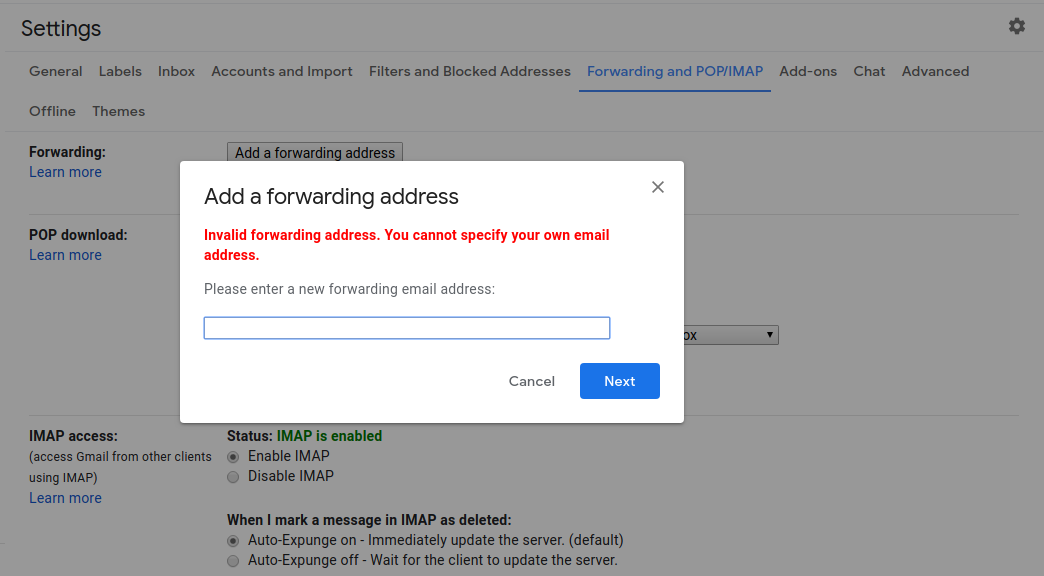
  3. Forwarding emails to a dot variant:

    Attempting to forward messages from your primary Gmail username to any of its dot or case variants will immediately trigger an explicit forwarding error:

  4. Adding dot variants to "Send mail as":

    Normally, adding an external address under Gmail's "Send mail as" settings requires a verification step:

    However, when adding a dot variant or @googlemail.com version of your own address, no verification email is required. Clicking "Next Step" immediately adds it as a usable sending alias:

  5. Inspecting header routing (Googlemail vs. Gmail):

    Open an email sent to your username@googlemail.com address, click the three-dot menu, and select Show original. Comparing the headers shows that while To lists @googlemail.com, Delivered-To displays your primary @gmail.com address, proving both routings terminate in the exact same inbox.

Finally, there is the complete absence of proof. In all these years, there has been zero documented proof that username@gmail.com and user.name@gmail.com exist as two separate Gmail accounts.

Somnath Datta profile picture

About Somnath Datta

Somnath is a Google Diamond Product Expert specializing in Gmail and Google Accounts. He is also a Mentor for new volunteers and Product Experts in both those forums. He regularly shares technical guides, troubleshooting advice, and step-by-step solutions to help users better navigate and resolve Gmail and Account issues efficiently.

How Gmail works (2026 Edition)

How Gmail Works

When folks come to Gmail for the first time, they instinctively expect it to work in exactly the same way as the traditional email services and desktop email clients they have grown used to.

But when Google created Gmail back in 2004, they had an opportunity to redefine email and how it worked from the ground up. So—being Google!—they did.

The result is a sleek and efficient email management system: no physical folders and no separate copies of a message simply because it is associated with different labels. Instead, Gmail organizes messages using labels, Search, threaded conversations, and other built-in features. Messages can be accessed through system labels such as Inbox and All Mail, while Spam and Trash are handled separately. But because this model differs from what most people know, it can and still does lead to confusion.


1. Labels Not Folders: The Core Storage Model

The chief source of confusion is the way Gmail organizes messages. Many users are accustomed to splitting their mail into separate folders according to subject, making copies where necessary, and deleting a message from one folder without affecting what appears elsewhere.

Gmail, on the other hand, doesn't put messages in subject folders—it puts subject labels on messages. And that's a whole new ballgame!

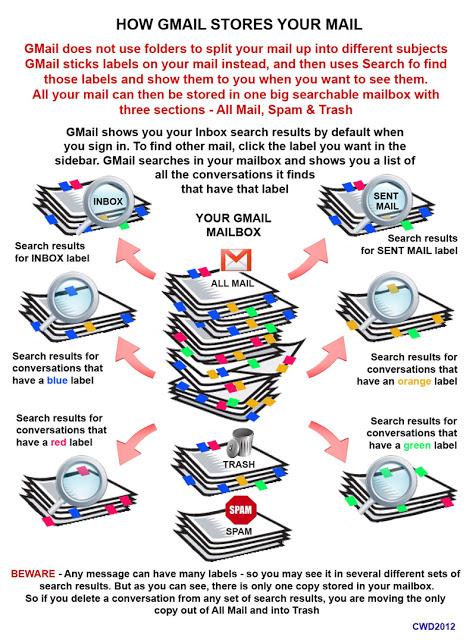
Gmail Single Mailbox and Search Result View Diagram

Gmail adds system labels like Inbox, Sent, and Important. Users add their own custom labels like Work, Vacation, Football, or Family. To see the messages associated with a label, click the label name in the sidebar. Gmail displays the messages associated with that label.

Because each message can carry multiple labels, the same message may appear in several label views. This can create the impression that duplicate messages exist, when the different views are simply showing the same message with different labels.


2. Common Pitfalls & Things Which Go Wrong

Deleting Sent Messages or Conversation Threads

In traditional folder-based email clients, users may think of a message in Sent as a separate copy stored in a Sent folder. Gmail does not work that way. A message can be associated with system labels such as Sent and Inbox, but those labels do not represent separate copies of the message. When you delete a message, it is moved to Trash and is no longer available under its other labels.

Deleting Messages After Replying or Categorizing

Some users reply to a message, apply a project label, and then delete the message from their Inbox expecting the labeled version to remain. In Gmail, labels do not create separate copies of a message. Deleting the message moves it to Trash, so it is no longer available under its other labels. If you want to remove the message from the Inbox while keeping it available under its labels, archive it instead.

Remember: Messages in Trash and Spam are automatically deleted after 30 days.


3. Best Practices for Using Labels

Managing your mailbox with labels is fast, flexible, and completely customizable:

  • Applying Labels: Use Gmail's label controls to apply a label to selected messages, or use the available drag-and-drop options where supported.
  • Move to Label: The “Move to” option can move a message from the Inbox to a selected label, removing it from the Inbox in the process.
  • Color Coding & Visibility: Use the options available for a label in the Gmail sidebar to customize its color and visibility.
  • Nesting Labels: Organize related sub-topics by creating nested child labels under a parent label for a cleaner sidebar layout.
  • Deleting Labels Safely: If you delete a custom label you created, no emails are deleted. The label is removed, but the messages remain in Gmail and can still be found through other applicable labels, Search, or All Mail.
Somnath Datta profile picture

About Somnath Datta

Somnath is a Google Diamond Product Expert specializing in Gmail and Google Accounts. He is also a Mentor for new volunteers and Product Experts in both those forums. He regularly shares technical guides, troubleshooting advice, and step-by-step solutions to help users better navigate and resolve Gmail and Account issues efficiently.

About Google Accounts (2026 Edition)

How Google Accounts Work

One common theme running through all the Help Forums is confusion about Google Accounts and what you can and can’t do with—and to—them.

So what exactly IS a Google account?

A Google Account is the identity you use to sign in to Google products and services. It is associated with a primary Google Account email address, which identifies the account to you and others, and it can also have additional email addresses for purposes such as sign-in, recovery, or contact. A Google Account gives you access to Google products such as Gmail, YouTube, Docs, Calendar, Blogger, Drive, Maps, and Photos, depending on which services you use.

The "House" Analogy

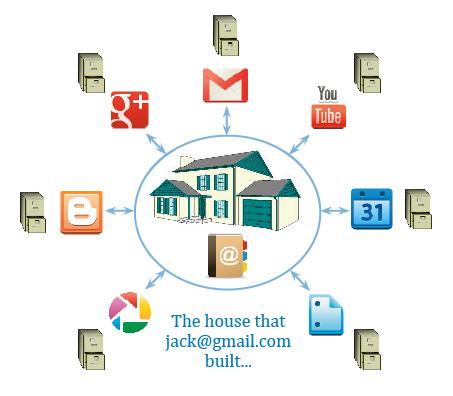
In fact, a Google Account is rather like a house:

  • The Street Address: The Google Account's primary email address or username.
  • The Rooms: Different Google products located inside the house (Gmail, Photos, Drive, YouTube, etc.).
  • The Filing Cabinets: Product-specific data, with Google Account storage shared across Gmail, Drive, and Google Photos.
  • The Front Door Key: Your sign-in credentials, such as your password, passkey, or other verification methods.
  • The Telephone Table in the Lobby: Google Contacts associated with the account.
Google Account House Analogy Diagram

Photo Courtesy: Wendy Durham's Blog.


1. How Do I Get a Google Account?

For many of us, creating a Google Account happens when we decide to set up a Gmail address. The Gmail address you choose becomes the primary email address associated with the Google Account and is used to identify the account when you use Google services.

Using a Non-Gmail Address

If you don't use Gmail, you can still create a Google Account using an existing email address from Hotmail, Yahoo, or your ISP.

If you later add Gmail to that non-Gmail Google Account:

  1. The new Gmail address becomes the primary email address associated with the Google Account.
  2. The original non-Gmail email address remains associated with the account as an alternate email address.
  3. If the original address qualifies as an alternate email address and has been verified, you can use it to sign in as well.

Alternate email address vs. Recovery email address

Any non-Gmail address not currently linked to another Google Account can be added as an Alternate email address after email verification.

How to fix it:

  1. Sign in to the original Google Account at https://accounts.google.com/.
  2. Go to Google Account Settings (myaccount.google.com).
  3. Select Personal Info from the left panel and click on Email under the Contact Info section.
  4. Under the Alternate emails section, click Manage alternate emails to visit the alternate emails page, and use the available option to remove the listed address.
  5. If you intended the address only as a recovery contact, add it under Recovery email instead.

2. How Do I Use My Google Account?

Once logged in, you can easily switch between services using the Google Apps launcher (the "waffle" menu) in the top-right corner.

Many people do not appreciate this structure. They simply sign in to Gmail to check their mail and sign out again when they are finished. Consequently, when they later decide to try Calendar, Drive, or Docs, they may not realise that they already have a Google Account that includes Gmail. Instead of signing in with their existing Google Account, they create a new one. When they decide they would like to start a blog, they go to Blogger and may repeat the same process. As a result, some users end up with multiple Google Accounts, each often used for only one or two products, and have to switch between accounts whenever they move from one product to another and need access to data stored in a different account.


3. Right Data - Wrong Account? Pitfalls & Scenarios

Because Google accounts stay signed in via browser cookies, users frequently end up signed into the wrong account without realizing it. Let’s try some examples to see how that can happen:

Common Multi-Account Scenarios

  • Scenario A (Docs & Drive): Fred is signed into his personal Google account when he decides to draft an article for his next blog post—he clicks on Docs from the 9-dots Google apps launcher and is taken to the Docs product. He creates a new Google document, starts writing his article, and saves it. Next day, he signs into his work Gmail account, opens Docs, and finds to his horror that his document is missing! It isn’t, of course, but he is signed in to a different Google account to the one in which he created his masterpiece the day before, so that document isn’t available to him.
  • Scenario B (Photos & Albums): John sets up Google Photos albums whilst still signed into the Google account he uses for work. He spends time setting up Albums, adding photos to them and sharing them with his friends. The next day, he checks his personal Gmail account for email, and whilst there decides to check for any comments from his friends on the shared photos. To his shock, when he clicks on Photos, he has no Albums, no Photos—it’s all gone! Not at all—it’s still all there in the Google account he used to create it, but it is not accessible unless he is signed in to that account.
  • Scenario C (Shared Devices): A visiting relative signs in on your computer to check their Gmail for new messages. They forget to sign out—and you decide to do something you’ve been meaning to do for weeks, i.e. create a work Calendar. You click on the 9-dot Google apps launcher, and without checking the sign-in info in the top right-hand corner, click on Calendar and labour away putting all your work appointments and reminders into a new Calendar. But sadly, your nice new Calendar is now firmly connected to that guest's Google Account. It isn't part of your own Google Account, and you won't normally be able to access or manage it from your account unless the guest shares it with you or otherwise grants your account access.

4. Why Can't You Just "Merge" Accounts?

Let’s go back to our Google account house...

A few doors down from our “house” is another Google account. It has the same layout, with various Google products and their data occupying the different rooms. It may have a few different products to the house up the street - it may, for example, use YouTube and maybe it doesn’t have a Gmail account at all. It too will have its own address book on its own telephone table in its own lobby. But to enter this house, you can’t use the key from the house a few doors up. You have to use a different key - the unique username or “street address” for that house - before you can open the front door. And when you DO open the front door, and start visiting the rooms where the products live, you will find completely different sets of data in the filing cabinets. Even the address book on the lobby table is different from the one in the house next door...

Now imagine you owned both houses, and you wanted the products in the first house to be able to open the filing cabinets in the second house and vice versa. But they don’t have the front door key, so they can’t get in through the front door. You can’t change the locks so that the same key opens both doors - you’d just screw up the data because none of the products would know which filing cabinet it ought to be storing its data in, and none of the products would know where they had to look for their data.

To consolidate data, you generally have to transfer or move the relevant data from House B to House A using whatever options the individual Google product provides.


5. Best Practices for Managing Multiple Accounts

Managing multiple Google accounts needs some discipline and does require planning if you are to get the best out of your working environment. So, to summarise:

  • Remember that if you use Gmail you already have a Google account, and there is no need to create additional Google accounts for other products unless you specifically want to keep them separate from your email IDs.
  • When signing up for a new product, think about whether that product can go in one of your existing Google accounts, or whether it needs an account of its own. Act accordingly by signing in to the relevant account, or creating a new one.
  • When signing up for a new product, make sure you are NOT already signed in to an account you will regret associating that product with! Always check your address in the top right corner of the page.
  • On a shared or public computer, always sign out of your Google Account when you are finished. On your own trusted device, you can remain signed in and use Multiple Sign-in or Chrome Profiles, provided you always check which account is active before creating or modifying data.
  • Simplify working with several accounts at once by using Chrome Browser Profiles, but make sure you know the rules!
  • When deleting an account, make sure you confirm first (1) which account you are actually deleting (check the top right corner again!) and (2) which products you have attached to that account. Understand that deleting the Google Account can also delete the data stored in the Google products associated with that account. If you want to keep any product data, export it (where possible) first.
  • If you make mistakes, ensure you know what you can and can’t do with your data by using the advice in the Google Accounts Help Centre and on the Google Takeout help centre article.
  • To help cope with data loss, make sure you back up important data regularly. Check what export or backup options are available for each Google product you use. Google Takeout can export copies of data from many Google products, including Gmail, Drive, Calendar, Photos, and YouTube, although the exact export options vary by product.

6. Google Account Reference Links

Somnath Datta profile picture

About Somnath Datta

Somnath is a Google Diamond Product Expert specializing in Gmail and Google Accounts. He is also a Mentor for new volunteers and Product Experts in both those forums. He regularly shares technical guides, troubleshooting advice, and step-by-step solutions to help users better navigate and resolve Gmail and Account issues efficiently.

Wednesday, May 27, 2026

Using Google Contact Labels (Groups) in the Gmail Android app

One of the most persistent feature requests from the Gmail mobile app users is to be allowed the benefit of using the contact labels (previously called Groups) set up in the Google contacts manager to send out emails. 

That's because the contact labels created in the Google Contacts manager at https://contacts.google.com/ can't be used in other places except for the Gmail standard web UI accessible via https://mail.google.com/. It also meant that those contact labels or groups stayed out of bounds for users who would use the Gmail Android or iOS app. 

The Google Contacts Android app seems to have been made things just a bit better for the Gmail Android mobile app users.

To be able to use the Google Contact labels in the Gmail Android app, download and install the Google Contacts app from the Play Store.
 
Once installed, it will display the Contacts for that Google account as well as the Contact label(s) assigned to them. 

To be able to see the Contact labels, tap on the Label icon highlighted in the screenshot below. 
 
 
Tap on the contact label name you wish to send out emails to. Here, I have chosen to select the Contact Group label "Everests".
 

Now, tap on the 3-dot (more/overflow) menu, and from the options, tap on "Send email".


This next screen then allows you to select or unselect Contacts and their emails within this group by tapping on the circular icon (bearing their profile image or letter) left of their name. Contacts with multiple email addresses will be displayed separately with their individual addresses.


Once finished, tap on the Done button at the top-right to be taken to the Gmail compose window, where the contact details will be found entered in the "To:" recipients' area.


You can now arrange the names in different recipients' area, enter the Subject and the body of the email and send it away.

Finally, it is important to bear in mind the points mentioned below:
  • While the Google Contacts Android app allows you to send to Groups, it doesn't allow forwarding to a Contact Group even after you choose to use the "Add from Contacts" option from Gmail. So, it is something that can be sent in as feedback for the team from that app itself. 
  • The possibility of copying all the contact emails for a contact label and pasting it in the Forwarding email has also been considered and checked. That doesn't happen either. So, that is another area to consider sending feedback to the team, from the Gmail Android app.
  • You can send feedback through the 3-bar menu > Help & feedback > Send feedback options from both the Gmail and Google Contacts Android apps.