How Google Accounts Work
One common theme running through all the Help Forums is confusion about Google Accounts and what you can and can’t do with—and to—them.
So what exactly IS a Google account?
A Google Account is the identity you use to sign in to Google products and services. It is associated with a primary Google Account email address, which identifies the account to you and others, and it can also have additional email addresses for purposes such as sign-in, recovery, or contact. A Google Account gives you access to Google products such as Gmail, YouTube, Docs, Calendar, Blogger, Drive, Maps, and Photos, depending on which services you use.
The "House" Analogy
In fact, a Google Account is rather like a house:
- The Street Address: The Google Account's primary email address or username.
- The Rooms: Different Google products located inside the house (Gmail, Photos, Drive, YouTube, etc.).
- The Filing Cabinets: Product-specific data, with Google Account storage shared across Gmail, Drive, and Google Photos.
- The Front Door Key: Your sign-in credentials, such as your password, passkey, or other verification methods.
- The Telephone Table in the Lobby: Google Contacts associated with the account.
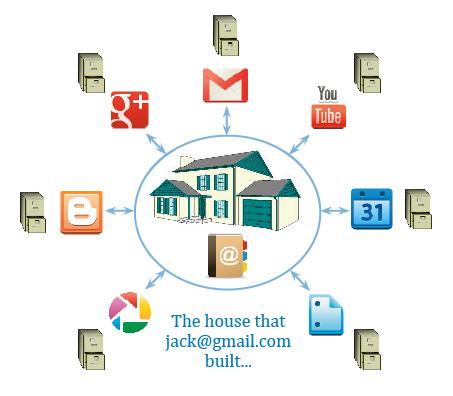
Photo Courtesy: Wendy Durham's Blog.
1. How Do I Get a Google Account?
For many of us, creating a Google Account happens when we decide to set up a Gmail address. The Gmail address you choose becomes the primary email address associated with the Google Account and is used to identify the account when you use Google services.
Using a Non-Gmail Address
If you don't use Gmail, you can still create a Google Account using an existing email address from Hotmail, Yahoo, or your ISP.
If you later add Gmail to that non-Gmail Google Account:
- The new Gmail address becomes the primary email address associated with the Google Account.
- The original non-Gmail email address remains associated with the account as an alternate email address.
- If the original address qualifies as an alternate email address and has been verified, you can use it to sign in as well.
Alternate email address vs. Recovery email address
Any non-Gmail address not currently linked to another Google Account can be added as an Alternate email address after email verification.
How to fix it:
- Sign in to the original Google Account at https://accounts.google.com/.
- Go to Google Account Settings (myaccount.google.com).
- Select Personal Info from the left panel and click on Email under the Contact Info section.
- Under the Alternate emails section, click Manage alternate emails to visit the alternate emails page, and use the available option to remove the listed address.
- If you intended the address only as a recovery contact, add it under Recovery email instead.
2. How Do I Use My Google Account?
Once logged in, you can easily switch between services using the Google Apps launcher (the "waffle" menu) in the top-right corner.
Many people do not appreciate this structure. They simply sign in to Gmail to check their mail and sign out again when they are finished. Consequently, when they later decide to try Calendar, Drive, or Docs, they may not realise that they already have a Google Account that includes Gmail. Instead of signing in with their existing Google Account, they create a new one. When they decide they would like to start a blog, they go to Blogger and may repeat the same process. As a result, some users end up with multiple Google Accounts, each often used for only one or two products, and have to switch between accounts whenever they move from one product to another and need access to data stored in a different account.
3. Right Data - Wrong Account? Pitfalls & Scenarios
Because Google accounts stay signed in via browser cookies, users frequently end up signed into the wrong account without realizing it. Let’s try some examples to see how that can happen:
Common Multi-Account Scenarios
- Scenario A (Docs & Drive): Fred is signed into his personal Google account when he decides to draft an article for his next blog post—he clicks on Docs from the 9-dots Google apps launcher and is taken to the Docs product. He creates a new Google document, starts writing his article, and saves it. Next day, he signs into his work Gmail account, opens Docs, and finds to his horror that his document is missing! It isn’t, of course, but he is signed in to a different Google account to the one in which he created his masterpiece the day before, so that document isn’t available to him.
- Scenario B (Photos & Albums): John sets up Google Photos albums whilst still signed into the Google account he uses for work. He spends time setting up Albums, adding photos to them and sharing them with his friends. The next day, he checks his personal Gmail account for email, and whilst there decides to check for any comments from his friends on the shared photos. To his shock, when he clicks on Photos, he has no Albums, no Photos—it’s all gone! Not at all—it’s still all there in the Google account he used to create it, but it is not accessible unless he is signed in to that account.
- Scenario C (Shared Devices): A visiting relative signs in on your computer to check their Gmail for new messages. They forget to sign out—and you decide to do something you’ve been meaning to do for weeks, i.e. create a work Calendar. You click on the 9-dot Google apps launcher, and without checking the sign-in info in the top right-hand corner, click on Calendar and labour away putting all your work appointments and reminders into a new Calendar. But sadly, your nice new Calendar is now firmly connected to that guest's Google Account. It isn't part of your own Google Account, and you won't normally be able to access or manage it from your account unless the guest shares it with you or otherwise grants your account access.
4. Why Can't You Just "Merge" Accounts?
Let’s go back to our Google account house...
A few doors down from our “house” is another Google account. It has the same layout, with various Google products and their data occupying the different rooms. It may have a few different products to the house up the street - it may, for example, use YouTube and maybe it doesn’t have a Gmail account at all. It too will have its own address book on its own telephone table in its own lobby. But to enter this house, you can’t use the key from the house a few doors up. You have to use a different key - the unique username or “street address” for that house - before you can open the front door. And when you DO open the front door, and start visiting the rooms where the products live, you will find completely different sets of data in the filing cabinets. Even the address book on the lobby table is different from the one in the house next door...
Now imagine you owned both houses, and you wanted the products in the first house to be able to open the filing cabinets in the second house and vice versa. But they don’t have the front door key, so they can’t get in through the front door. You can’t change the locks so that the same key opens both doors - you’d just screw up the data because none of the products would know which filing cabinet it ought to be storing its data in, and none of the products would know where they had to look for their data.
To consolidate data, you generally have to transfer or move the relevant data from House B to House A using whatever options the individual Google product provides.
5. Best Practices for Managing Multiple Accounts
Managing multiple Google accounts needs some discipline and does require planning if you are to get the best out of your working environment. So, to summarise:
- Remember that if you use Gmail you already have a Google account, and there is no need to create additional Google accounts for other products unless you specifically want to keep them separate from your email IDs.
- When signing up for a new product, think about whether that product can go in one of your existing Google accounts, or whether it needs an account of its own. Act accordingly by signing in to the relevant account, or creating a new one.
- When signing up for a new product, make sure you are NOT already signed in to an account you will regret associating that product with! Always check your address in the top right corner of the page.
- On a shared or public computer, always sign out of your Google Account when you are finished. On your own trusted device, you can remain signed in and use Multiple Sign-in or Chrome Profiles, provided you always check which account is active before creating or modifying data.
- Simplify working with several accounts at once by using Chrome Browser Profiles, but make sure you know the rules!
- When deleting an account, make sure you confirm first (1) which account you are actually deleting (check the top right corner again!) and (2) which products you have attached to that account. Understand that deleting the Google Account can also delete the data stored in the Google products associated with that account. If you want to keep any product data, export it (where possible) first.
- If you make mistakes, ensure you know what you can and can’t do with your data by using the advice in the Google Accounts Help Centre and on the Google Takeout help centre article.
- To help cope with data loss, make sure you back up important data regularly. Check what export or backup options are available for each Google product you use. Google Takeout can export copies of data from many Google products, including Gmail, Drive, Calendar, Photos, and YouTube, although the exact export options vary by product.
6. Google Account Reference Links
- Google Accounts Help Center: support.google.com/accounts
- Create a Google Account: accounts.google.com/signup
- Manage Your Google Account: myaccount.google.com
- Google Takeout (Data Export): takeout.google.com
- Multiple Sign-in Information: support.google.com/accounts/answer/1721977
- Security & Passkeys: myaccount.google.com/security


