Tuesday, September 15, 2020

Using IMAP protocol to import/export emails (2026 Edition)

Using IMAP to transfer emails between Gmail and another email account

There are times when you want to move a collection of emails from one email account to another. Perhaps you are changing email providers, consolidating several accounts, or simply want to keep older messages in a Gmail account.

There are several ways to approach this, depending on the email services involved and what you want to preserve.

In this article, I will show you a practical method that uses an email client as an intermediary. The example uses Thunderbird to copy messages from an AOL account into a Gmail account through IMAP.

Helpful Information

This article is intended primarily for personal Google Accounts and consumer email accounts. If you are working with a Google Workspace account managed by an organization, the available settings and migration options may be different.

1. What this method actually does

The basic idea is straightforward.

Instead of trying to make Gmail directly retrieve messages from another email account, you use an email client such as Thunderbird to connect to both accounts through IMAP.

The email client acts as the intermediary.

For example:

AOL account → Thunderbird → Gmail account

Pro Tip

Although Gmail and AOL are used in this example, this method is not limited to those two services. The same basic approach can be used with other email accounts that can be accessed through the email client using IMAP.

You select messages in the AOL account and copy them into a folder belonging to the Gmail account.

Because the Gmail account is connected to Thunderbird through IMAP, the copied messages are then synchronized with Gmail. Once synchronization has completed, you can open Gmail in a web browser and verify that the messages are present there.

This is not a special Gmail import operation. You are using an email client to copy messages between two accounts, with IMAP providing access to the mail stored on the servers.

It is also important to understand that this is a manual transfer, not a permanent synchronization arrangement between the two accounts. Once you have completed the transfer, the two accounts do not become continuously synchronized with each other.

2. Before we start

Before beginning, make sure that both email accounts can be added successfully to the email client you intend to use.

The exact sign-in and authorization process can vary between email providers and can change over time.

Important: Use the current authentication process

Do not work around account-security protections simply to make an email client connect. If the email service requires a particular sign-in or authorization process, follow that service's current instructions.

For a personal Gmail account, there is also no longer a separate “Enable IMAP” switch that you need to turn on before using a current third-party email client. Google says IMAP access is always turned on for personal Gmail accounts. Current email clients should use the supported authentication process as offered.

You should also make sure that your email client is updated. An updated email client can support the latest authentication methods and security requirements. Also make sure that both accounts can send and receive messages normally before attempting a large transfer.

3. The accounts we'll use in this example

For this example, two accounts are used:

  • AOL — the source account containing the messages to be transferred.
  • Gmail — the destination account where the copied messages are to end up.

In Thunderbird, each email address added to the program is displayed as an account. In this article, the terms “Gmail account” and “AOL account” refer to those respective accounts as they appear in Thunderbird.

The important part of the procedure is that both accounts should be available through IMAP in the email client.

Thunderbird is used here because it allows multiple email accounts to be displayed together and provides straightforward ways to copy messages between folders. This can also be useful when the two email services do not provide a direct or convenient way to transfer messages between the accounts themselves.

Gmail Label Structure Web UI
AOL Folder Structure Web UI
Thunderbird Gmail Account Layout
Thunderbird AOL Account Layout

At this point, the accounts are still separate accounts. Thunderbird is simply providing a common interface through which we can work with both accounts.

4. Create a destination folder

Before copying the messages, I recommend creating a dedicated destination folder under the Gmail account.

For example, you might call it AOL Transfer.

The exact name is not important. What matters is that you know where the transferred messages are going to appear.

In Thunderbird, create the folder under the Gmail account rather than under the AOL account.

Creating a new folder under the Gmail account in Thunderbird
Naming new folder in Thunderbird
Helpful Note: Gmail folders and labels

Gmail uses labels rather than traditional folders internally. When Gmail is accessed through IMAP, however, the Gmail account can appear in an email client with a folder-like structure. The way folders and labels are represented can therefore look somewhat different in Thunderbird from what you see in Gmail's web interface.

After the folder has been created and Thunderbird has synchronized the change, you should be able to see the new destination folder under the Gmail account.

New folder successfully synced across Thunderbird and Gmail UI
Pro Tip — Why Creating a Dedicated Destination Folder Helps

A dedicated folder makes the transferred messages easier to identify and verify later. It also reduces the chance of accidentally mixing the transferred messages with existing mail in your Gmail inbox or another folder.

Once you have confirmed that the transfer was successful, you can decide how you want to organize the messages within Gmail.

5. Copy messages from the source account

Now we can begin the actual transfer.

Open the folder in the AOL account that contains the messages you want to transfer.

Select the messages you want to copy.

Pro Tip — Test with a small group first

Before transferring a large collection of messages, test the process with a small group. This gives you an opportunity to confirm that the messages, folders, attachments, and other details behave as expected before you commit to a larger transfer.

Copying messages from AOL to Gmail folder in Thunderbird

Use Thunderbird's Copy operation and select the destination folder that you created under the Gmail account.

The messages are now being copied from the AOL account into the Gmail account through Thunderbird.

Depending on the number and size of the messages, the operation may take some time.

At this point, the important thing is that you have copied the messages rather than removed them from the source account.

6. Why Copy rather than Move?

I recommend copying the messages rather than moving them for the following reasons.

First, copying leaves the original messages in the source account while you verify the transfer.

Second, if something does not behave as expected, you still have the originals available in the source account.

Third, copying gives you an opportunity to compare the transferred messages with the originals before deciding whether the originals should be removed.

Important

If preserving the originals is important to you, do not use a Move operation simply because it appears to be quicker. A Move operation can remove the message from its original location after the email client synchronizes the change with the server.

Copy first. Verify the result. Only then decide whether anything should be removed from the source account.

7. Checking the transferred messages

Once the copy operation has completed, look at the destination folder under the Gmail account in Thunderbird.

You should see the messages that you copied from the AOL account.

Transferred messages shown in the Gmail destination folder in Thunderbird

Because the ultimate destination is the Gmail account, let's also allow Gmail to synchronize the messages and check the same label through Gmail's web interface.

Side-by-side verification between client and Gmail web UI

This second check is useful because it confirms that the messages are not merely visible inside Thunderbird. They have also been synchronized to the Gmail account.

8. Another way: Drag and drop

Important: Check whether drag-and-drop copies or moves

Do not assume that dragging messages always creates copies. Depending on the email client, the accounts involved, and how the drag-and-drop operation is performed, the action may copy or move the messages.

If keeping the originals is important, verify what the operation will do before releasing the mouse button.

Depending on the email client and the way its folders are displayed, you may also be able to select messages and drag them from one account or folder to another.
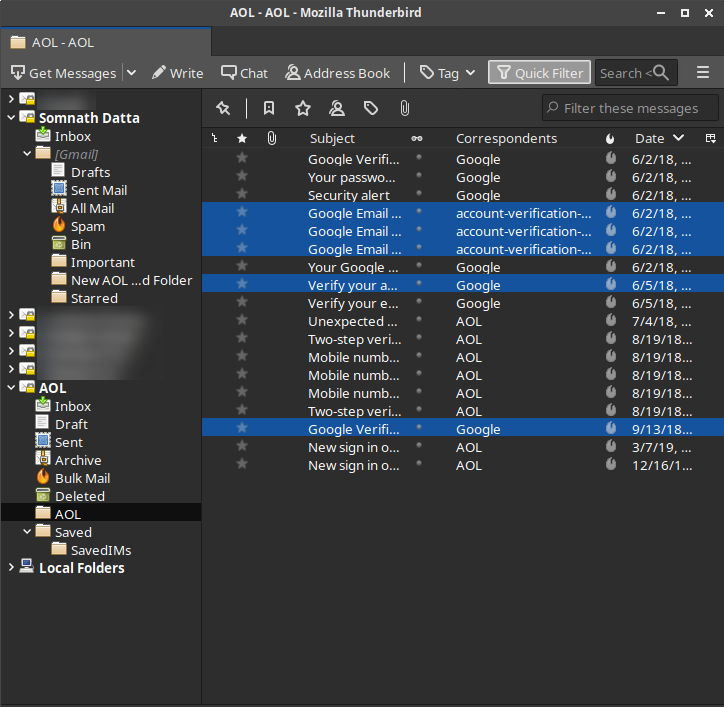
Selecting email messages in Thunderbird
Dragging selected emails to target folder

If the operation copies the messages, you can use it as an alternative to the explicit Copy command.

Moved messages reflected in Gmail web UI after synchronization

For that reason, I would still recommend using the explicit Copy operation when preserving the originals is important.

9. Allow the destination account to synchronize

After copying the messages, give the Gmail account enough time to synchronize the changes.

This is particularly important when transferring a large number of messages or messages with sizeable attachments.

Gmail account synchronizing transferred messages in Thunderbird

Do not assume that the moment the messages appear in Thunderbird, every message has already finished synchronizing with Gmail's servers.

Pro Tip

Large transfers may take some time. If you have copied a substantial number of messages, allow the email client and Gmail enough time to complete synchronization before you begin deleting or reorganizing the originals.

The exact amount of time will depend on factors such as the number and size of the messages, your connection, and the behavior of the email services involved.

10. Verify the transfer before removing the originals

Important

This is the step I would not skip.

Before removing anything from the source account, verify the transfer in Gmail itself.

Pay particular attention to folders and labels, message organization, attachments, dates, and any other information that is important to you.

Open several transferred messages rather than checking only the message count.

If you have transferred a particularly important collection of emails, consider checking a representative selection of older and newer messages, messages with attachments, and messages from different folders.

Only after you are satisfied that the transferred messages are available in the destination Gmail account should you consider removing the originals from the source account.

And even then, if the originals are important, it may be wise to retain them for some additional period rather than deleting them immediately.

11. What about transferring in the opposite direction?

When both accounts have been added to the email client, neither account is permanently designated as the source account or the destination account. Either account can serve as the source or destination depending on which way you want to transfer the messages.

As long as both accounts can be accessed through the email client using IMAP, you can transfer messages between them in either direction.

For example, if you wanted to transfer messages from Gmail to another email account, you would add both accounts to the email client, identify the destination folder in the other account, and copy the required messages from Gmail to that destination.

The direction changes, but the basic process remains the same:

Source account → Email client → Destination account

The exact folder and label behavior can differ, however, so it is still worth performing a small test before transferring a large collection.

12. What this method does not guarantee

Using IMAP through an email client provides a practical way to copy messages between accounts, but it does not guarantee that every aspect of the source account will be reproduced exactly in the destination account.

For example, the way folders, labels, categories, flags, or other account-specific information are represented can vary between email services.

Attachments and message content may also need to be checked if they are particularly important.

The safest approach is therefore not to assume that a successful message count means that every aspect of the original mailbox has been reproduced perfectly.

This is another reason I recommend testing a small group first and verifying the result in the destination account.

Important

IMAP does not make two email services identical.

IMAP provides a common way for an email client to access and synchronize messages, but each email service can have its own features, folder/label structure, and handling of message information.

13. If you are transferring a large number of emails

A large transfer can take considerably longer than a small test.

If you have many thousands of messages, or messages containing large attachments, you may find it easier to transfer the messages in smaller batches or by folder.

You do not necessarily have to transfer the entire mailbox in one operation.

Working in smaller groups also makes it easier to identify a problem if something does not transfer as expected.

Pro Tip — Work in manageable batches

If you are transferring a large collection, consider completing one folder or a manageable group of messages at a time. Verify each batch before moving on to the next.

This can make the process easier to monitor and gives you a clearer opportunity to spot missing or incorrectly transferred messages.

If the email client appears to be downloading or synchronizing a very large amount of data, allow it to finish rather than repeatedly interrupting and restarting the process.

14. How this relates to Gmail's own import options

Gmail also provides its own ways of bringing messages from another email account into Gmail. These options are separate from the IMAP-based method described in this article.

The important distinction is that Gmail's own import facilities and an email-client transfer do not necessarily work in the same way. Depending on the option being used, Gmail may handle the messages differently, and some account or folder information may not be transferred in the same way as it would through an email client.

Google currently documents a one-time import option for bringing mail and contacts from another email account. Google also notes that folders and labels are not imported as part of that process.

At the same time, Gmail's web-based support for working with other email accounts is changing. Google is retiring Gmailify and the web-based “Check mail from other accounts” feature that uses POP. Google says that after the first quarter of 2026, new users can no longer use that POP-based feature, while existing users can continue using it until January 2027. One-time import of mail and contacts remains available.

For that reason, I would not recommend treating any particular Gmail import menu or account-retrieval option as a permanent part of Gmail. Google's available options and their interfaces can change over time.

If you want to use Gmail's own import facilities, check Google's current instructions for the options available at the time you perform the import.

For the procedure described in this article, however, the basic principle remains straightforward:

Source account → Email client using IMAP → Destination account using IMAP

This approach does not depend on a particular Gmail import menu. Instead, the email client handles the transfer between the two accounts, while Gmail subsequently synchronizes the copied messages.

15. Final thoughts

Using an email client with IMAP can provide a practical and relatively controlled way to transfer messages between two email accounts.

The basic process is:

Source account → Email client → Destination account

The most important part is not simply getting the messages to appear in the destination account. It is making sure that the messages have actually synchronized to the destination, verifying the result, and keeping the originals until you are satisfied that the transfer is complete.

For that reason, I recommend starting with a small test, copying rather than moving the original messages, allowing synchronization to finish, and then checking the transferred messages through the destination account's normal web interface.

Once you are satisfied with the result, you can decide how you want to organize the transferred messages and whether the originals should be retained or removed.

Helpful Note

An email client may also provide ways to import or work with email messages from existing archives or files in formats such as EML and MBOX. These options can be useful when you are working with archived email rather than transferring messages directly between two email accounts.

Gmail's web interface does not provide a general native facility for directly uploading EML or MBOX files into a Gmail mailbox, so an appropriate email client or other intermediary may be needed when working with these types of files.

However, importing EML or MBOX files is a different process from transferring messages between two accounts through IMAP and is outside the scope of this article.

Disclaimer

This article is provided for general informational purposes and is based on the author's experience with Gmail and Google Accounts. Gmail features, settings, menus, and procedures may change over time. The steps and screenshots in this article reflect the Gmail interface and functionality reviewed for this edition of the article.

This is an independent informational article and is not an official Google support page.

About the author

Somnath Datta is a Google Diamond Product Expert specializing in Gmail and Google Accounts. He is also a Mentor for new volunteers and Product Experts in both those forums.

He regularly shares technical guides, troubleshooting advice, and step-by-step solutions based on his experience helping Google users.

Wednesday, July 10, 2019

Resolving Name related issues in Gmail

Resolving name-related issues in Gmail

If you have noticed a different name appearing against your Gmail address when you send an email, or when you receive an email from someone, you could be curious about how or why this has happened.

This can be the case because the name displayed with an email address is not necessarily controlled by a single Gmail or Google Account setting. Depending on whether the name appears with a sent message or a received message, where the name appears, and how the Gmail address is being used, it may come from your Google Account, a Gmail setting, a contact entry, or the email application being used to send or receive messages.

This article explains the different possibilities and, more importantly, how to identify where that name is located so that you can correct it at the appropriate place.

Before you start: Identify where the name appears

Before changing anything, first identify where the unexpected name appears.

One of the most useful first questions is:

Does the unexpected name appear when you send an email, or when you receive or view an email?

This is an important clue because the source of the name may be different in each situation.

When the issue involves a sent message, the name may be associated with the Gmail sender settings or with the application being used to send the message.

On the other hand, when you receive or view a message, the name you see may instead be influenced by contact information or by the application or interface displaying the message.

The sent-versus-received distinction does not, by itself, identify the exact source of the name. It simply helps narrow down where you should investigate.

You should also identify which application or interface is involved.

Option 1: Check your Google Account name

One possible source of the name associated with your Gmail address is the name on your Google Account.

Your Google Account has personal information associated with it, including your name. That information can be displayed by Google in various places and may therefore be relevant when you notice an unexpected name associated with your Gmail address.

If you have recently changed your name, or if an older name is still appearing somewhere, checking the name on your Google Account is a sensible first step.

You can check your Google Account name using either of these official Google Account pages:

Google Account Name Change Screen

However, changing your Google Account name should not automatically be regarded as the solution to every name-related problem in Gmail.

Google Account Profile Edit Screen

To set how your name is displayed publicly, click the arrow icon (>) in the Display Name As section, select your preferred format, and click Save.

Google Profile Display Name Options

Option 2: Check the name used when sending mail from Gmail

Gmail has a separate setting that determines the name associated with messages you send from a Gmail address.

This setting can be found in Gmail's settings under Accounts and Import and Send mail as. Selecting Edit info beside the relevant address allows you to check the name being used when messages are sent.

Gmail Send Mail As Setting Screen
Gmail “Send mail as” Setting Screen

This is particularly important if the problem occurs when you send an email and the recipient sees an unexpected name alongside your Gmail address.

The name shown here can be different from the name currently displayed in your Google Account.

If the name shown in your Google Account and the name shown in your Gmail Send mail as setting are both correct, there is a greater possibility that the unexpected name is being supplied or displayed by a third-party email application or mobile app that you are using to access your Gmail address.

In that situation, continue with the next option and check the application or mail client through which you are using your Gmail address.

Updated Send Mail As Confirmation
Updated Gmail “Send mail as” Confirmation

Option 3: Check the email application you are using

Now it is time to look at the third-party applications you are using to access your Gmail address.

This can happen when a Gmail address is being used through commonly used third-party mail clients. For example, you could be using your Gmail address through Apple Mail, Outlook, or another mail application rather than through Gmail in a web browser.

Sender Name Settings in Mozilla Thunderbird
Account Name Setting in iOS Mail App

Option 4: Check your own Gmail address in Google Contacts

Another possible source of an unexpected name is your own contact information.

If your Gmail address has been saved in Google Contacts, the contact entry may contain a name that is different from the name currently associated with your Google Account or the name used by Gmail when sending messages.

This can sometimes be overlooked because you may not think of your own Gmail address as a contact that needs to be checked.

You can open Google Contacts here:

https://contacts.google.com/

Self Contact Entry in Google Contacts
Hovercard Showing Custom Contact Name

If you find an entry for your own Gmail address, check the name associated with that contact and correct it if necessary.

This is especially worth checking when the unexpected name appears in a place where Gmail or another Google service may be using contact information to identify an email address.

Hovercard Restored to Google Account Name

A useful test: Compare Gmail with the other application

If you are unsure where the incorrect name is coming from, perform a simple comparison.

First, sign in to Gmail through a web browser and send a test message to another email address that you can check.

Then send another test message using the application in which the incorrect name appears.

Compare the names shown with the two messages.

If the name is correct when sending from Gmail in a web browser but incorrect when sending through another mail application, that strongly suggests that the two applications are obtaining or displaying the name differently.

This comparison can help you avoid changing settings that are unrelated to the actual problem.

A simple way to work through the problem

Rather than changing settings at random, work through the possibilities in this order:

  1. Determine whether the unexpected name appears with a sent message or a received message.
  2. Identify exactly where the unexpected name appears.
  3. Identify which application or interface is displaying it.
  4. Check your Google Account name.
  5. If the problem concerns outgoing Gmail messages, check the Gmail “Send mail as” name.
  6. If you are using another mail application, check that application's account or sender-name settings.
  7. Check whether your own Gmail address has an incorrect name in Google Contacts.
  8. If necessary, compare the result from Gmail in a web browser with the result from the other application.
Visual summary showing the four main sources of a name associated with a Gmail address
Four places to check when troubleshooting a name-related issue in Gmail

The most important point is to determine which source is supplying the name before changing anything.

About the Author

Somnath Datta is a Google Diamond Product Expert specializing in Gmail and Google Accounts. He is also a Mentor for new volunteers and Product Experts in both those forums.

He regularly shares technical guides, troubleshooting advice, and step-by-step solutions based on his experience helping Google users and participating in the Google Help Communities.

Sunday, May 26, 2019

Revisiting Templates in Gmail (2026 Edition)

Templates in Gmail

If you regularly send the same type of information by email, you may find yourself repeatedly typing the same text or using copy-paste to reuse it.

Google provides a feature called Templates (previously called Canned Responses) that can make this much easier. A Template lets you save commonly used email content and insert that content into a new message whenever you need it.

Templates are particularly useful when you frequently send similar replies, instructions, explanations, or other routine messages but still want to review and personalize the message before sending it.


Before you start: Enable Templates in Gmail

Before you can create or use Templates, you need to enable the Templates feature in Gmail.

Open Gmail in a web browser and go to Gmail Settings. In the Advanced section, locate Templates and enable the feature.


1. Create a Template

Once Templates are enabled, open a new message and compose the content that you want to save for future use.

When the message contains the reusable content you want, open the More options menu in the compose window, choose Templates, and then choose the option to save the current draft as a Template.

Gmail will ask you to provide a name for the Template. Choose a name that will make it easy to recognize later.

After you save it, the Template will be available through the Templates menu whenever you need to insert it into a message.


2. Insert a Template

When you need to use a saved Template, start a new message in Gmail.

Open the More options menu, choose Templates, and select the Template you want to insert.

The saved content will be inserted into the message. You can then edit it as needed before sending.


3. Edit or Overwrite a Template

If you need to change the wording of an existing Template, first insert that Template into a new message and make the necessary changes.

When the revised content is ready, use the More options menu and select Templates. From there, choose the option to save the revised content as the same Template.

Gmail will replace the existing saved content with the revised version.


4. Delete a Template

If you no longer need a Template, you can remove it through the Templates menu.

Open the More options menu, choose Templates, and select the Template you want to delete.


Gmail will ask you to confirm that you want to delete the Template.


Practical ways you can use Gmail Templates

Here are some practical situations in which Gmail Templates can be useful.

When you regularly provide technical help

Imagine that you regularly help friends, family members, or other Gmail users with technical questions.

You may find yourself sending the same explanations repeatedly—for example, instructions for changing a setting, checking something in Gmail, or working through a particular problem.

Instead of rewriting those instructions each time, you can save the reusable explanation as a Template. When someone asks the same type of question, insert the Template into a new message and then add or change the details that apply to that person's particular situation.

When you regularly answer questions about something you know well

Imagine that people regularly ask you questions about a subject, hobby, interest, or personal activity that you know well.

You may often find yourself explaining the same basic information, providing the same background, or pointing people to the same resources.

A Template can give you a starting point for those replies. You can insert the saved explanation and then adapt it to the particular question you have received.

When you regularly provide instructions

Imagine that you frequently send instructions explaining how to do something.

This might involve setting up an application, changing a setting, following a particular process, or finding information.

If the instructions are largely the same each time, saving them as a Template can save you from recreating the explanation whenever someone asks.

When you regularly respond to enquiries about a personal activity

Imagine that people regularly contact you with questions about a personal project, community activity, informal volunteer activity, or something else you are involved in.

You may have a standard explanation, a set of useful links, or other information that you provide to many people.

A Template lets you keep that reusable information ready while still allowing you to personalize the response for each person.

When you regularly send the same type of follow-up

Imagine that you frequently send follow-up messages containing additional information, directions, instructions, reminders, or links.

If the basic structure and wording of those messages are usually the same, you can save that reusable content as a Template.

When you need it, insert the Template and add the details that are relevant to the current conversation.

When you find yourself copying an old email

Imagine that you repeatedly open an old email simply because you want to copy some of its wording into a new message.

That is often a good indication that the reusable part of the message could be saved as a Template instead.

The next time you need the same information, you can insert the Template directly into a new message rather than searching through your old email for the wording.

Somnath Datta profile picture

About Somnath Datta

Somnath Datta is a Google Diamond Product Expert specializing in Gmail and Google Accounts. He is also a Mentor for new volunteers and Product Experts in both those forums. He regularly shares technical guides, troubleshooting advice, and step-by-step solutions based on his experience helping Google users.

Wednesday, February 20, 2019

Gmail 101 (2026 Edition)

Gmail 101: A Practical Guide to Using Gmail

Gmail is more than a place to send and receive email. It provides tools for organizing messages, managing conversations, communicating with others, and customizing your email experience. This guide introduces the essential features of Gmail and explains how they work, helping you become more comfortable with the service.

Your first Google Account

When you first get access to a new computer or mobile phone, one of the first things you may do is create a Google Account.

A Google Account gives you access to a wide range of Google products and services. When you create a Google Account, you also get a Gmail address ending in @gmail.com, which you can use with Gmail.

Gmail is Google's mail service. Your Gmail address is typically the primary username associated with your Google Account.

Part 1: Understanding and navigating your Gmail Inbox

1. Gmail can look different depending on how you use it

Gmail is available through its web interface and its mobile apps for Android and iOS. Although the core functions are similar, the interfaces may differ in their arrangement, controls, and available features.

The user interface (UI), including the arrangement of elements and controls and the available features, can differ between the web interface and the mobile apps. Where something works differently between these interfaces, this guide will point out the difference so that you can understand it and test it in the interface you are using.

Depending on your device, you can download the official Gmail app from either the Google Play Store or the App Store.

2. Conversation View

One of the first things you may notice when using Gmail is Conversation view. Gmail has Conversation view turned on by default, so messages that belong to the same conversation are displayed together rather than as completely separate messages.

But how does Gmail know which messages belong to the same conversation? Gmail uses information contained in the messages, including their Message-ID and references to earlier messages, to determine their relationship and group them into a conversation.

3. Where are your Gmail messages?

Gmail has three locations for messages: All Mail, Spam, and Trash.

You will also encounter Inbox, Sent, categories such as Updates, Promotions, Forums, and Social, and markers such as Starred and Important while using Gmail. These are labels or markers that provide filtered views of the messages that have them.

The Inbox, for example, is a label-based view of all messages within All Mail that have the Inbox label. When the Inbox label is removed from a message, the message remains in All Mail but is no longer visible in the Inbox view. In Gmail terminology, this is called archiving.

This also explains why Gmail has no separate Archive location or label: archiving is done by removing the Inbox label from a message.

4. Gmail Inbox layouts

Gmail offers different Inbox styles to help you decide how messages are presented in your Inbox. The available styles include Default, Important first, Unread first, Starred first, Priority Inbox, and Multiple Inboxes.

Default: Displays messages in your Inbox, with Primary as the main category and optional additional tabs such as Social, Promotions, Updates, and Forums. Gmail automatically classifies incoming messages into these categories.

Important first: Places messages Gmail considers important above the remaining messages.

Unread first: Places unread messages above messages you have already read.

Starred first: Places starred messages above messages without a star.

Priority Inbox: Separates messages into sections to help you focus on messages Gmail considers important, unread messages, starred messages, or other selected groups.

Multiple Inboxes: Allows you to display additional sections alongside your main Inbox, using searches or criteria you specify.

All inboxes in the Gmail mobile app

In the Gmail mobile app, All inboxes provides a combined view of messages from the Inboxes of the accounts you have added to the app. It is a convenient way to view messages from multiple accounts together without switching between their individual Inboxes. All inboxes is a combined view in the mobile app rather than a separate Inbox style selected in Gmail's web interface.

AI Inbox

AI Inbox is a newer AI-powered experience that helps you identify important tasks and catch up on topics by presenting suggested to-dos and summaries of relevant email conversations.

5. Gmail uses labels

One of Gmail's distinctive features since its launch in 2004 is its use of labels instead of folders.

Gmail uses labels to organize messages. Think of a label as a Post-it note that you can attach to a message. Just as you can attach multiple Post-it notes to a document, you can apply multiple labels to a message in Gmail.

A message or conversation can have more than one label. Selecting a label gives you a view of the messages or conversations carrying that label.

If you cannot find a label in the left panel in Gmail, it may be hidden from the label list rather than missing. Select More to see additional labels. Alternatively, open Gmail settings and go to the Labels section, where you can change a label's visibility setting to make it appear in the label list.

6. Creating and managing labels

You can create labels to organize your messages according to your own needs. For example, you might create labels for projects, travel, bills, or messages that need follow-up.

Labels can be applied to individual messages or conversations, and you can use them to find related messages later. Gmail also allows you to manage labels, including changing their names and adjusting their visibility.

Remember that a label helps you organize and find messages; it does not create a separate copy of a message.

7. “Label as” and “Move to”

Once you understand how Gmail uses labels, you will encounter two common actions: Label as and Move to.

Label as applies the selected label to a message or conversation. The message or conversation can retain its other labels.

Move to works differently. When you use Move to, Gmail removes the current label from the message or conversation and applies the destination label you selected. This can make it seem as though the message has disappeared from the current label and reappeared under the destination label.

8. Archive and Mute

There is a basic difference between archiving and muting a message or conversation.

Archiving removes the Inbox label from the message or conversation. It therefore no longer appears in the Inbox view but remains within All Mail. If someone replies, the conversation can return to the Inbox view.

Muting also removes the conversation from the Inbox view, but the important difference is what happens when someone replies. A muted conversation does not return to the Inbox when a new reply is received. It remains muted until you unmute it.

9. Schedule and Snooze

Schedule is used when you want to send an email at a later time. You compose the email as usual, but instead of sending it immediately, you choose the date and time when Gmail should send it.

After an email has been scheduled, you can view it by selecting Scheduled from the left panel in Gmail. The email remains there until the scheduled time, when Gmail sends it.

Snooze is your way of telling Gmail, in effect, “Come back at this specific date and time when I need you.” It temporarily removes a message or conversation from the Inbox view and brings it back to the Inbox at the date and time you specify. The message or conversation remains within All Mail while it is snoozed.

While a message or conversation is snoozed, you can view it by selecting Snoozed from the left panel in Gmail.

10. Deleting messages

When you delete a message from Gmail, it is moved to Trash (or Bin, depending on the interface). It remains there for up to 30 days, after which Gmail automatically and permanently deletes it.

If you want to recover a message that is still in Trash, open Trash (or Bin) from the left panel in Gmail. Find and select the message you want to recover, then choose Move to and select Inbox or another label. The message will be removed from Trash and returned to the selected location. If you cannot find Trash in the left panel, you may need to select More to display it.

11. Search

Search is Gmail's way of finding messages that already exist in your Gmail mailbox based on criteria you specify.

You can create a search query in two ways. The easiest and most common way is to use search chips, which are clickable buttons that let you narrow down your search by selecting additional criteria. If you cannot create an effective search query using search chips, you can click the search button and either type the query yourself or select the search wizard icon to open a drop-down panel. The wizard lets you specify the scope and other parameters of your search by selecting the options you need.

Gmail also supports search operators, which let you refine a query using parameters such as the sender, recipient, subject, date, or words contained in a message. For examples of these operators, see Google's official Help Center article, Refine searches in Gmail.

A search query is used to find messages that already exist in Gmail when you perform the search. A filter definition, on the other hand, tells Gmail how to handle subsequent incoming messages that meet the specified criteria. This distinction defines the scope of a search query compared with a filter definition: a search helps you find messages that are already there, while a filter is intended to act on messages that arrive later.

AI Overviews in Gmail search

Gmail can use AI to provide answers based on information in your emails rather than simply returning a list of matching messages. Availability depends on eligibility and settings.

Gmail Live

Gmail Live lets eligible users ask questions about their email using their voice and interact with Gmail conversationally.

12. Filters

Filters allow you to tell Gmail what to do automatically with incoming messages that meet criteria you specify. For example, you can create a filter to apply a particular label, star a message, forward it, or delete it when the message matches your criteria.

Gmail provides a filter wizard to help you define the criteria for a filter and choose the actions Gmail should take when an incoming message matches them. You can specify criteria such as the sender, recipient, subject, or words contained in a message.

You can also turn a search query into a filter. After creating a search query, you can select the option to create a filter based on those search criteria and then choose the actions Gmail should take when future incoming messages match them.

13. Gmail notifications

Gmail notifications help you know when new messages arrive without having to check and refresh your mailbox constantly.

The notification options available to you can depend on whether you use Gmail on the web or through its mobile apps. Mobile notifications can also depend on your device's notification permissions and operating-system settings.

On Android and iOS, Gmail provides notification choices such as All new mail, High priority only, and None. The options and their locations in the settings may differ between the two platforms.

On Android, Gmail also supports notification settings for individual labels, allowing you to customize notifications for selected types of messages after the relevant labels have been synchronized. The available options differ from those provided by the iOS app.

For desktop notifications, Gmail provides settings under Settings → See all settings → General → Desktop notifications. Browser permissions and your computer's notification settings can also affect whether notifications appear.

If Gmail notifications on the Android app are not working as expected, see the detailed troubleshooting guide, Not receiving Gmail app notifications.

Part 2: Reading, managing, and sending messages

1. Reading and managing messages

When you open a message in Gmail, you can read its contents and choose what to do next. Depending on the message and the interface, you can reply, forward it, archive it, delete it, mark it as unread, or take other actions.

Gmail groups related messages into conversations when Conversation view is enabled. This helps you follow an exchange without having to locate each message separately.

The actions available in a conversation may apply to the conversation as a whole or to an individual message. Pay attention to what you have selected before taking an action, particularly when managing a conversation containing several messages.

2. Starring messages and marking messages as important

Gmail provides different ways to highlight messages that deserve your attention.

Starred is useful when you want to mark a message for later reference or follow-up. You can use stars to make selected messages easier to find.

Important is a separate marker Gmail uses to identify messages it considers important. Gmail may determine importance using signals such as how you interact with messages and the characteristics of the messages you receive. You can also change the importance marker yourself.

A star and the Important marker are not the same thing. Starring a message does not automatically mean that Gmail considers it important, and marking a message as important does not necessarily add a star.

3. Reporting spam, phishing, and blocking senders

Gmail provides options to report unwanted or suspicious messages and to block senders. Although these actions may seem similar, they serve different purposes.

Report spam tells Gmail that a message is unwanted. Gmail moves the reported message to Spam and can use the report to help identify similar messages in the future.

Report phishing tells Gmail that a message appears to be an attempt to deceive you, often to obtain sensitive information or persuade you to take an unsafe action. Use this option when you believe a message is a phishing attempt.

Block a sender is different from reporting a message. When you block a sender, future messages from that sender are directed to Spam. Blocking a sender does not, by itself, report the message as phishing.

What if Gmail flags a legitimate message?

Gmail may sometimes flag a legitimate message as spam or suspicious. If you believe a message has been incorrectly flagged, examine it carefully before deciding whether it is safe.

In some cases, Gmail provides a Looks safe option in the web interface to indicate that you trust the message. This option is generally not available in the Gmail mobile apps, although its availability also depends on the type of warning displayed. If you need this option but cannot find it in the app, try opening Gmail in a desktop web browser or in a mobile browser with the Desktop site option enabled.

4. Composing, replying to, and forwarding messages

Gmail lets you compose new messages, reply to existing messages, and forward messages to other recipients.

When you select Reply, you send your response to the sender of the message you are replying to. Reply all sends the response to the sender and the other recipients included in the message. Forward allows you to send the message to someone who was not originally included in the conversation.

To, CC, and BCC

When composing an email, you can address it to recipients in the To, CC, and BCC fields.

  • To: The primary recipients of the message.
  • CC (Carbon Copy): Recipients who receive a copy of the message and whose addresses are visible to the other recipients.
  • BCC (Blind Carbon Copy): Recipients who receive a copy of the message without their addresses being disclosed to the other recipients through the BCC field.

Send and Send + Archive

When replying to a conversation from the Inbox, you may see Send and Send + Archive.

Send sends your response while leaving the conversation in the Inbox view. Send + Archive sends your response and removes the Inbox label from the conversation at the same time.

Confidential mode

Have you ever wanted to send someone information that they should be able to access only for a limited period? Perhaps you have shared details for a temporary assignment, sent a draft document for review, or needed to ensure that a message would no longer be accessible after a specified date.

Have you ever wished you could restrict what the recipient can do with a message, such as forwarding it to someone else, copying its contents, or downloading or printing it?

Have you ever wished you could retain more control over a message even after it has been sent and delivered? For example, you might want to revoke the recipient's access before the message's expiration date, so that they can no longer open or access its contents through Gmail.

Gmail's Confidential mode offers options that can help you address these situations. You can set an expiration date for a message, restrict certain actions such as forwarding, copying, printing, and downloading where supported, and revoke access before the expiration date.

5. Undo Send

Have you ever sent an email and immediately realized that you had forgotten to include an important detail, addressed it to the wrong recipient, attached the wrong file, or noticed a mistake in what you had written?

What if you could stop the email from being sent and correct the mistake before it reached the recipient?

Gmail's Undo Send feature gives you a short window of time after you select Send to cancel the sending process. If you act within that window, Gmail stops the message from being sent, allowing you to make the necessary corrections before sending it again.

You can adjust the cancellation period in Gmail settings, choosing from 5, 10, 20, or 30 seconds. The default period is 5 seconds.

6. Formatting messages

Gmail provides a range of formatting options in both its web interface and mobile apps, allowing you to present your message in a way that best suits its purpose and intended recipient. Depending on the interface, you can format text, emphasize important points, create lists, insert links, and use other available options to make your message easier to read and understand.

7. Attachments in Gmail

You can attach files to an email in Gmail in two main ways: by attaching files directly from your device or by sharing files through Google Drive.

Attaching files directly: When composing a message, select the Attach files icon (usually represented by a paperclip) and choose the file you want to attach. The available steps may differ between Gmail's web interface and mobile apps.

Sharing files through Google Drive: If a file is too large to send as a regular attachment, you can upload it to Google Drive and share it through Gmail. This is particularly useful for files that exceed Gmail's 25 MB attachment limit. Depending on the file and its sharing permissions, Gmail may insert a Google Drive link instead of attaching the file directly. Make sure the recipient has the necessary permission to open the file.

8. Forwarding an email as an attachment

Gmail lets you forward an email as an attachment instead of forwarding its contents as part of a new message.

This can be useful when you want to share an email while preserving the original message as an attached email file. It allows the recipient to open the attached message and examine its contents, including information that may be relevant to understanding the original communication.

Forwarding an email as an attachment is different from forwarding it normally. A regular forward places the original message's contents within the new message, whereas forwarding as an attachment includes the original email as an attached file.

9. Canned responses and automatic replies

If you frequently send similar responses, Gmail provides ways to reduce the need to compose the same message repeatedly.

Templates let you save commonly used message text and insert it into messages when needed. This can be useful for frequently asked questions, standard explanations, and other responses that require little or no modification.

For more details, see Revisiting Templates in Gmail (2026 Edition).

You can also configure automatic replies. One approach uses Gmail's Templates and Filters to send a response when an incoming message meets criteria you specify.

For instructions, see Setting up Autoreply in Gmail.

10. Send mail as versus delegation

Gmail provides two features that may seem similar but serve different purposes: Send mail as and account delegation.

Send mail as allows you to send messages from another email address that you have configured in Gmail and are authorized to use. This is useful when you want to send messages from different email addresses without switching between mail interfaces.

Account delegation, on the other hand, allows you to grant another person access to your Gmail account so that they can help manage your email. A delegate can perform permitted actions on your behalf, including reading, sending, and deleting messages.

The main difference is that Send mail as concerns the address from which you send a message, whereas delegation concerns another person's access to your Gmail account. They are separate features, and one does not automatically provide the capabilities of the other.

Part 3: Customizing Gmail and exploring AI

1. Gmail settings and customization

Gmail provides a range of settings that let you tailor the service to your preferences. Depending on the interface, you can customize aspects of your Inbox, manage labels, adjust notifications, configure message-related options, and control other parts of your Gmail experience.

Settings can differ between the web interface and mobile apps. Some options are available in both, while others may be located differently or depend on the interface you are using.

When looking for a particular setting, start with Gmail's Settings menu. In the web interface, selecting See all settings opens the full settings page, where options are organized into tabs.

Commonly used settings in the Gmail web interface

The following table highlights eight useful settings available through Gmail on the web.

Setting Where to find it What it lets you customize
ThemeClick the gear icon (Settings) → ThemeChange Gmail's background appearance.
DensityClick the gear icon (Settings) → DensityAdjust the spacing and compactness of the message list.
Inbox typeGear icon (Settings) → See all settings → Inbox tab → Inbox typeChoose how messages are organized and displayed in your Inbox.
Reading paneGear icon (Settings) → Reading pane in Quick settings; or See all settings → Inbox tab → Reading paneEnable a preview pane and choose whether it appears to the right of or below the Inbox.
SignatureGear icon (Settings) → See all settings → General tab → SignatureCreate and manage signatures for outgoing messages.
Vacation responderGear icon (Settings) → See all settings → General tab → Vacation responderSet up automatic replies while you are away.
Filters and blocked addressesGear icon (Settings) → See all settings → Filters and Blocked Addresses tabCreate filters to manage incoming messages and review blocked senders.
OfflineGear icon (Settings) → See all settings → Offline tabEnable Gmail Offline and configure options for accessing synchronized messages without an internet connection.

For Reading pane, you can use the control in Quick settings or open the Inbox tab on the full settings page. The available layout options let you position the preview pane to the right of or below the Inbox.

Gmail Offline requires a compatible browser and initial setup. Its availability and behavior may depend on the browser and device you use.

Commonly used settings in the Gmail Android app

The following table highlights five useful settings in the Gmail app for Android.

Setting Where to find it What it lets you customize
NotificationsMenu → Settings → select your Google Account → NotificationsChoose which incoming messages trigger notifications, depending on the available options.
Mobile signatureMenu → Settings → select your Google Account → Mobile signatureAdd a signature to messages sent from the app.
Swipe actionsMenu → Settings → General settings → Swipe actionsChoose what happens when you swipe a message, such as archiving or deleting it.
Conversation viewMenu → Settings → select your Google Account → Conversation viewChoose whether messages in an email thread are grouped together, where this option is available.
Sync GmailMenu → Settings → select your Google Account → Sync GmailEnable or disable synchronization of Gmail messages on the device.

The available settings and their navigation paths can vary by app version and account. Some options may appear under General settings rather than within an individual Google Account's settings.

Commonly used settings in the Gmail iOS app

The following table highlights five useful settings in the Gmail app for iOS.

Setting Where to find it What it lets you customize
NotificationsMenu → Settings → Email notificationsChoose the notification level available for incoming messages.
Mobile signatureMenu → Settings → Signature settingsCreate or edit the signature used for messages sent from the app.
LabelsMenu → Settings → Customize labelsConfigure label-related options, where available.
Vacation responderMenu → Settings → select your Google Account → Vacation responderSet up automatic replies while you are away, if the option is available for your account.
Smart ReplyMenu → Settings → Smart ReplyControl suggested replies, if this option is available in your version of the app.

The available options may vary depending on the app version and account. If you cannot find a particular setting, check the current Gmail app menus and available account options.

Smart features and personalization

Gmail provides settings that control its smart features and how information from Gmail and other Google services can be used to personalize your experience.

These settings cover different areas, including smart features within Gmail, Chat, and Meet; connected experiences across Google Workspace services; and personalization in other Google products.

Turning off these controls can affect features such as Smart Reply, Smart Compose, automatic inbox categorization, and certain information displays. The effects depend on which setting you change.

Smart-features glossary

The following glossary explains some commonly encountered smart features and related terminology.

Feature or term What it means
Smart ReplySuggests short, ready-to-use responses to an email.
Smart ComposeOffers writing suggestions as you compose a message.
Automatic inbox categorizationSorts incoming messages into categories, such as Primary, Social, and Promotions, where those categories are enabled.
Intelligent information displaysSurfaces useful information associated with messages, such as flight details, reservations, package tracking, or bills, when supported.
Smart features in Gmail, Chat, and MeetA group of controls affecting smart capabilities within these Google communication services.
Smart features across Google WorkspaceControls connected experiences that use information across supported Workspace services.
Personalization in other Google productsControls how information from Google services may be used to personalize experiences in other Google products.

These features and controls are related, but they are not interchangeable. Changing one setting does not necessarily turn off every smart feature or every form of personalization.

2. AI in Gmail

Gmail has evolved over time, introducing features that help users organize messages, write responses, and find relevant information. Some of these capabilities predate the recent wave of generative AI tools.

Early intelligent features

These early features addressed practical needs. Smart Reply suggested quick responses, while Smart Compose helped users write messages. Gmail also introduced automatic inbox categorization and intelligent displays of information from emails, such as flight updates, hotel reservations, package tracking, and bills.

These features helped Gmail do more than display messages. They used signals and information from email to make common tasks easier.

Modern AI features

More recent AI-powered features can help users summarize information, identify important items, compose content, and interact with their email more conversationally.

AI Overviews in Gmail search can provide answers based on information in your emails, rather than simply returning a list of matching messages.

AI Inbox can help eligible users identify important tasks and catch up on relevant email conversations through suggested to-dos and summaries.

Gmail Live lets eligible users ask questions about their email using their voice and interact with Gmail conversationally.

AI-features glossary

The following glossary explains eight AI-powered features associated with Gmail. Availability may vary depending on your account, subscription, region, language, and the interface you use.

Gmail AI feature What it does
AI Overviews in Gmail searchGenerates an answer based on relevant information across your emails when you ask a supported question in Gmail search.
AI Overviews for email threadsSummarizes lengthy email conversations, highlighting key points and important replies.
AI InboxHelps eligible users prioritize tasks through suggested to-dos and catch up on important topics through summaries of relevant conversations.
Gmail LiveLets eligible users talk with Gmail using their voice, ask questions about their emails, and ask follow-up questions conversationally.
Help me writeGenerates an email draft from a prompt or helps refine existing text to improve its wording, tone, and clarity.
ProofreadOffers advanced writing suggestions to improve grammar, clarity, conciseness, and style.
Help me scheduleHelps users suggest suitable meeting times in an email, where the feature is available.
Gemini in GmailHelps eligible users summarize email conversations, draft messages, and find relevant information in their emails through Gemini-powered assistance.

These features are evolving, and their names, capabilities, and availability may change as Google updates Gmail. Check Google's current documentation for the latest eligibility and access requirements.

AI Inbox and Gmail Live are not necessarily available to every Gmail user. Access may depend on factors such as region, language, account type, eligibility, and the relevant Google plan.

Gmail's AI capabilities continue to evolve, so the exact features you can use may differ from those available to another user.

Conclusion

Gmail is more than a place to send and receive email. It brings together tools for organizing messages, managing conversations, and staying connected. Alongside email, Gmail integrates with Google Chat for messaging and Google Meet for video meetings, making it an important communication hub within Google's ecosystem.

As you become more familiar with Gmail's features, you can tailor it to suit the way you communicate and work. For more detailed explanations and troubleshooting advice, explore the specialized guides listed below.

About the author

Somnath Datta is a Google Diamond Product Expert specializing in Gmail and Google Accounts. He is also a Mentor for new volunteers and Product Experts in both those forums. He regularly shares technical guides, troubleshooting advice, and step-by-step solutions based on his experience helping Google users.