Using IMAP to transfer emails between Gmail and another email account
There are times when you want to move a collection of emails from one email account to another. Perhaps you are changing email providers, consolidating several accounts, or simply want to keep older messages in a Gmail account.
There are several ways to approach this, depending on the email services involved and what you want to preserve.
In this article, I will show you a practical method that uses an email client as an intermediary. The example uses Thunderbird to copy messages from an AOL account into a Gmail account through IMAP.
This article is intended primarily for personal Google Accounts and consumer email accounts. If you are working with a Google Workspace account managed by an organization, the available settings and migration options may be different.
Table of contents
- What this method actually does
- Before we start
- The accounts we'll use in this example
- Create a destination folder
- Copy messages from the source account
- Why Copy rather than Move?
- Checking the transferred messages
- Another way: Drag and drop
- Allow the destination account to synchronize
- Verify the transfer before removing the originals
- What about transferring in the opposite direction?
- What this method does not guarantee
- If you are transferring a large number of emails
- How this relates to Gmail's own import options
- Final thoughts
1. What this method actually does
The basic idea is straightforward.
Instead of trying to make Gmail directly retrieve messages from another email account, you use an email client such as Thunderbird to connect to both accounts through IMAP.
The email client acts as the intermediary.
For example:
AOL account → Thunderbird → Gmail account
Although Gmail and AOL are used in this example, this method is not limited to those two services. The same basic approach can be used with other email accounts that can be accessed through the email client using IMAP.
You select messages in the AOL account and copy them into a folder belonging to the Gmail account.
Because the Gmail account is connected to Thunderbird through IMAP, the copied messages are then synchronized with Gmail. Once synchronization has completed, you can open Gmail in a web browser and verify that the messages are present there.
This is not a special Gmail import operation. You are using an email client to copy messages between two accounts, with IMAP providing access to the mail stored on the servers.
It is also important to understand that this is a manual transfer, not a permanent synchronization arrangement between the two accounts. Once you have completed the transfer, the two accounts do not become continuously synchronized with each other.
2. Before we start
Before beginning, make sure that both email accounts can be added successfully to the email client you intend to use.
The exact sign-in and authorization process can vary between email providers and can change over time.
Do not work around account-security protections simply to make an email client connect. If the email service requires a particular sign-in or authorization process, follow that service's current instructions.
For a personal Gmail account, there is also no longer a separate “Enable IMAP” switch that you need to turn on before using a current third-party email client. Google says IMAP access is always turned on for personal Gmail accounts. Current email clients should use the supported authentication process as offered.
You should also make sure that your email client is updated. An updated email client can support the latest authentication methods and security requirements. Also make sure that both accounts can send and receive messages normally before attempting a large transfer.
3. The accounts we'll use in this example
For this example, two accounts are used:
- AOL — the source account containing the messages to be transferred.
- Gmail — the destination account where the copied messages are to end up.
In Thunderbird, each email address added to the program is displayed as an account. In this article, the terms “Gmail account” and “AOL account” refer to those respective accounts as they appear in Thunderbird.
The important part of the procedure is that both accounts should be available through IMAP in the email client.
Thunderbird is used here because it allows multiple email accounts to be displayed together and provides straightforward ways to copy messages between folders. This can also be useful when the two email services do not provide a direct or convenient way to transfer messages between the accounts themselves.


At this point, the accounts are still separate accounts. Thunderbird is simply providing a common interface through which we can work with both accounts.
4. Create a destination folder
Before copying the messages, I recommend creating a dedicated destination folder under the Gmail account.
For example, you might call it AOL Transfer.
The exact name is not important. What matters is that you know where the transferred messages are going to appear.
In Thunderbird, create the folder under the Gmail account rather than under the AOL account.


Gmail uses labels rather than traditional folders internally. When Gmail is accessed through IMAP, however, the Gmail account can appear in an email client with a folder-like structure. The way folders and labels are represented can therefore look somewhat different in Thunderbird from what you see in Gmail's web interface.
After the folder has been created and Thunderbird has synchronized the change, you should be able to see the new destination folder under the Gmail account.

A dedicated folder makes the transferred messages easier to identify and verify later. It also reduces the chance of accidentally mixing the transferred messages with existing mail in your Gmail inbox or another folder.
Once you have confirmed that the transfer was successful, you can decide how you want to organize the messages within Gmail.
5. Copy messages from the source account
Now we can begin the actual transfer.
Open the folder in the AOL account that contains the messages you want to transfer.
Select the messages you want to copy.
Before transferring a large collection of messages, test the process with a small group. This gives you an opportunity to confirm that the messages, folders, attachments, and other details behave as expected before you commit to a larger transfer.

Use Thunderbird's Copy operation and select the destination folder that you created under the Gmail account.
The messages are now being copied from the AOL account into the Gmail account through Thunderbird.
Depending on the number and size of the messages, the operation may take some time.
At this point, the important thing is that you have copied the messages rather than removed them from the source account.
6. Why Copy rather than Move?
I recommend copying the messages rather than moving them for the following reasons.
First, copying leaves the original messages in the source account while you verify the transfer.
Second, if something does not behave as expected, you still have the originals available in the source account.
Third, copying gives you an opportunity to compare the transferred messages with the originals before deciding whether the originals should be removed.
If preserving the originals is important to you, do not use a Move operation simply because it appears to be quicker. A Move operation can remove the message from its original location after the email client synchronizes the change with the server.
Copy first. Verify the result. Only then decide whether anything should be removed from the source account.
7. Checking the transferred messages
Once the copy operation has completed, look at the destination folder under the Gmail account in Thunderbird.
You should see the messages that you copied from the AOL account.

Because the ultimate destination is the Gmail account, let's also allow Gmail to synchronize the messages and check the same label through Gmail's web interface.

This second check is useful because it confirms that the messages are not merely visible inside Thunderbird. They have also been synchronized to the Gmail account.
8. Another way: Drag and drop
Do not assume that dragging messages always creates copies. Depending on the email client, the accounts involved, and how the drag-and-drop operation is performed, the action may copy or move the messages.
If keeping the originals is important, verify what the operation will do before releasing the mouse button.
Depending on the email client and the way its folders are displayed, you may also be able to select messages and drag them from one account or folder to another.
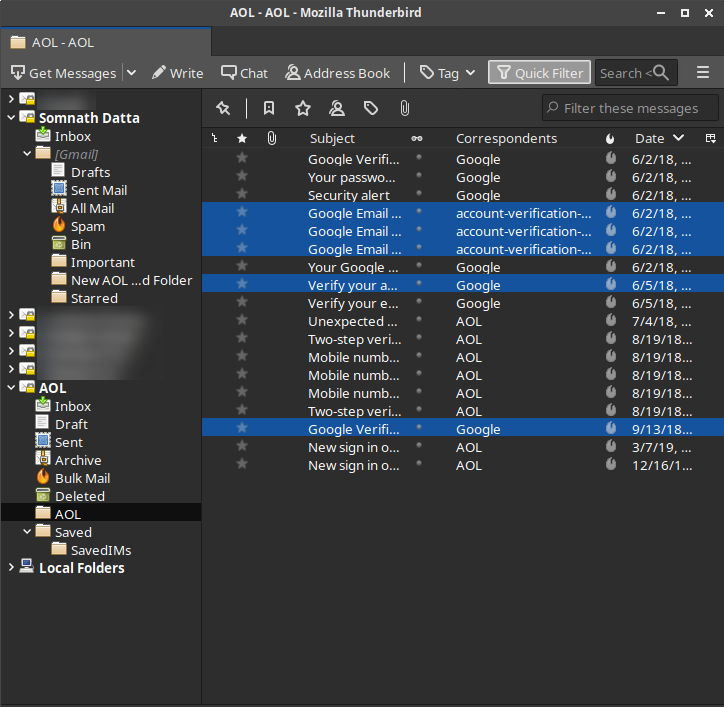

If the operation copies the messages, you can use it as an alternative to the explicit Copy command.

For that reason, I would still recommend using the explicit Copy operation when preserving the originals is important.
9. Allow the destination account to synchronize
After copying the messages, give the Gmail account enough time to synchronize the changes.
This is particularly important when transferring a large number of messages or messages with sizeable attachments.

Do not assume that the moment the messages appear in Thunderbird, every message has already finished synchronizing with Gmail's servers.
Large transfers may take some time. If you have copied a substantial number of messages, allow the email client and Gmail enough time to complete synchronization before you begin deleting or reorganizing the originals.
The exact amount of time will depend on factors such as the number and size of the messages, your connection, and the behavior of the email services involved.
10. Verify the transfer before removing the originals
This is the step I would not skip.
Before removing anything from the source account, verify the transfer in Gmail itself.
Pay particular attention to folders and labels, message organization, attachments, dates, and any other information that is important to you.
Open several transferred messages rather than checking only the message count.
If you have transferred a particularly important collection of emails, consider checking a representative selection of older and newer messages, messages with attachments, and messages from different folders.
Only after you are satisfied that the transferred messages are available in the destination Gmail account should you consider removing the originals from the source account.
And even then, if the originals are important, it may be wise to retain them for some additional period rather than deleting them immediately.
11. What about transferring in the opposite direction?
When both accounts have been added to the email client, neither account is permanently designated as the source account or the destination account. Either account can serve as the source or destination depending on which way you want to transfer the messages.
As long as both accounts can be accessed through the email client using IMAP, you can transfer messages between them in either direction.
For example, if you wanted to transfer messages from Gmail to another email account, you would add both accounts to the email client, identify the destination folder in the other account, and copy the required messages from Gmail to that destination.
The direction changes, but the basic process remains the same:
Source account → Email client → Destination account
The exact folder and label behavior can differ, however, so it is still worth performing a small test before transferring a large collection.
12. What this method does not guarantee
Using IMAP through an email client provides a practical way to copy messages between accounts, but it does not guarantee that every aspect of the source account will be reproduced exactly in the destination account.
For example, the way folders, labels, categories, flags, or other account-specific information are represented can vary between email services.
Attachments and message content may also need to be checked if they are particularly important.
The safest approach is therefore not to assume that a successful message count means that every aspect of the original mailbox has been reproduced perfectly.
This is another reason I recommend testing a small group first and verifying the result in the destination account.
IMAP does not make two email services identical.
IMAP provides a common way for an email client to access and synchronize messages, but each email service can have its own features, folder/label structure, and handling of message information.
13. If you are transferring a large number of emails
A large transfer can take considerably longer than a small test.
If you have many thousands of messages, or messages containing large attachments, you may find it easier to transfer the messages in smaller batches or by folder.
You do not necessarily have to transfer the entire mailbox in one operation.
Working in smaller groups also makes it easier to identify a problem if something does not transfer as expected.
If you are transferring a large collection, consider completing one folder or a manageable group of messages at a time. Verify each batch before moving on to the next.
This can make the process easier to monitor and gives you a clearer opportunity to spot missing or incorrectly transferred messages.
If the email client appears to be downloading or synchronizing a very large amount of data, allow it to finish rather than repeatedly interrupting and restarting the process.
14. How this relates to Gmail's own import options
Gmail also provides its own ways of bringing messages from another email account into Gmail. These options are separate from the IMAP-based method described in this article.
The important distinction is that Gmail's own import facilities and an email-client transfer do not necessarily work in the same way. Depending on the option being used, Gmail may handle the messages differently, and some account or folder information may not be transferred in the same way as it would through an email client.
Google currently documents a one-time import option for bringing mail and contacts from another email account. Google also notes that folders and labels are not imported as part of that process.
At the same time, Gmail's web-based support for working with other email accounts is changing. Google is retiring Gmailify and the web-based “Check mail from other accounts” feature that uses POP. Google says that after the first quarter of 2026, new users can no longer use that POP-based feature, while existing users can continue using it until January 2027. One-time import of mail and contacts remains available.
For that reason, I would not recommend treating any particular Gmail import menu or account-retrieval option as a permanent part of Gmail. Google's available options and their interfaces can change over time.
If you want to use Gmail's own import facilities, check Google's current instructions for the options available at the time you perform the import.
For the procedure described in this article, however, the basic principle remains straightforward:
Source account → Email client using IMAP → Destination account using IMAP
This approach does not depend on a particular Gmail import menu. Instead, the email client handles the transfer between the two accounts, while Gmail subsequently synchronizes the copied messages.
15. Final thoughts
Using an email client with IMAP can provide a practical and relatively controlled way to transfer messages between two email accounts.
The basic process is:
Source account → Email client → Destination account
The most important part is not simply getting the messages to appear in the destination account. It is making sure that the messages have actually synchronized to the destination, verifying the result, and keeping the originals until you are satisfied that the transfer is complete.
For that reason, I recommend starting with a small test, copying rather than moving the original messages, allowing synchronization to finish, and then checking the transferred messages through the destination account's normal web interface.
Once you are satisfied with the result, you can decide how you want to organize the transferred messages and whether the originals should be retained or removed.
An email client may also provide ways to import or work with email messages from existing archives or files in formats such as EML and MBOX. These options can be useful when you are working with archived email rather than transferring messages directly between two email accounts.
Gmail's web interface does not provide a general native facility for directly uploading EML or MBOX files into a Gmail mailbox, so an appropriate email client or other intermediary may be needed when working with these types of files.
However, importing EML or MBOX files is a different process from transferring messages between two accounts through IMAP and is outside the scope of this article.
This article is provided for general informational purposes and is based on the author's experience with Gmail and Google Accounts. Gmail features, settings, menus, and procedures may change over time. The steps and screenshots in this article reflect the Gmail interface and functionality reviewed for this edition of the article.
This is an independent informational article and is not an official Google support page.


